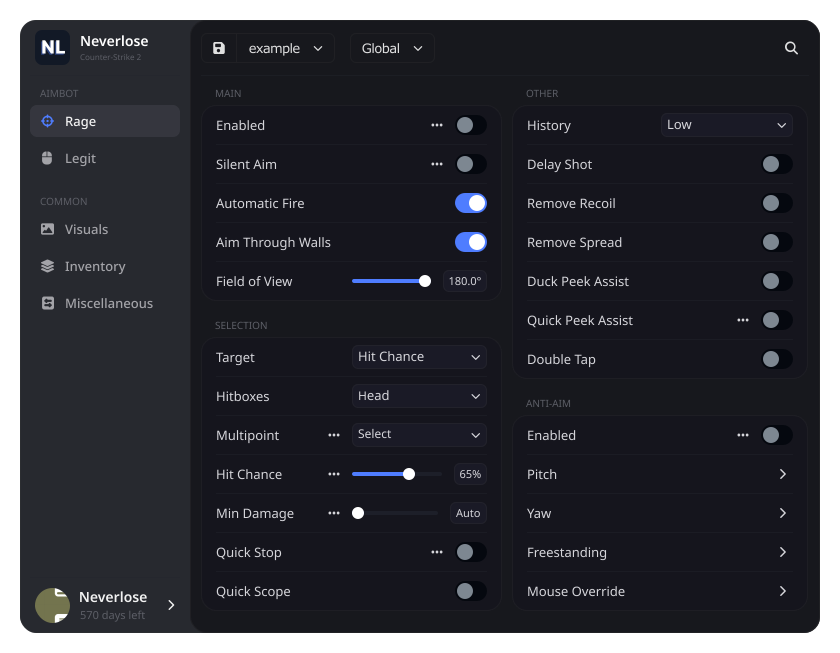
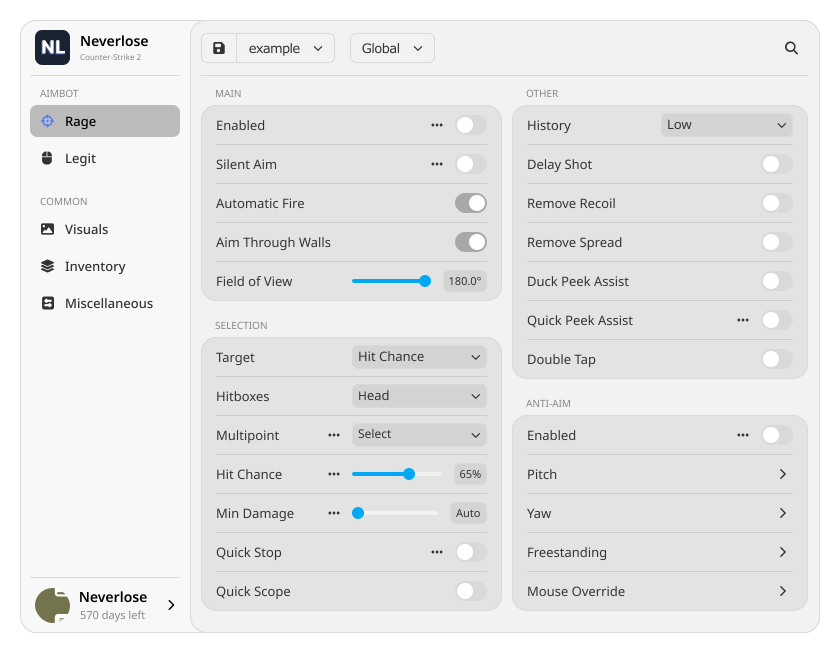
Tune Ragebot for your weapon and the situation: set your firing conditions, use Double Tap for a quick follow-up shot, and Quick Peek to return to your position.
Neverlose
Third-party software for Counter-Strike 2
Product status: Available now
Set up CS2 your way. Two full-featured modes — Legit and Rage — with flexible settings for your playstyle. Customize your visuals and interface, choose your preferred language, and expand Neverlose with community extensions.
System requirements
Officially supported versions of Windows 10/11 x64. A CPU with AVX support is required. A constant active internet connection is required.
Highlights
From how you fight to how your game looks — explore Neverlose in six short videos.
Extensive optimization work brings high performance and smooth gameplay to Neverlose. See the client in action in the comparison video.
Decide how Legitbot assists your aim: adjust smoothing, aim area, and reaction time. Recoil Control helps keep your crosshair steady while firing.
From the interface and HUD to models and environments — make CS2 look your way. Choose the ESP information you need, and adjust the lighting, sky, and atmosphere of the map.
Mix skins, knives, gloves, and agents. Adjust colors, position stickers and charms, and use custom character models with their radio voice lines.
Build your own scripts and expand Neverlose with an accessible Lua API. Built-in documentation, hints, and editor autocomplete help bring your ideas to life.
Development requires Developer Mode.
More ways to make the game yours
A quick peek, a calculated throw, or your own skin setup — find the tools for the way you play.
Double Tap
Fire two shots in quick succession when you need a fast follow-up — including with weapons that normally have a long delay between shots.
Hit Chance & Min Damage
Choose the hit chance and damage thresholds at which Ragebot fires. Set separate conditions for each weapon group.
Anti-Aim
Tune your model behavior for your approach to HvH: adjust Pitch, Yaw, and leg positioning. Change direction manually or with Mouse Override.
Quick Peek Assist
Peek out for a shot and automatically return to your starting position. Quick Peek remembers where to bring you back.
Quick Stop
Get your weapon ready for an accurate shot: Quick Stop automatically reduces movement speed to help restore accuracy.
Extrapolation
Account for target movement while aiming: Ragebot predicts the target’s position and uses that calculation for the shot. Adjust the prediction level to suit your setup.
History
Give Ragebot more information to work with: it takes an opponent’s previous positions into account when selecting an aim point.
Duck Peek Assist
Shoot over cover: when a shot becomes possible, Duck Peek automatically raises your character from a crouch.
Aim Assist
Choose how smoothly and quickly aim assistance responds. Adjust the aim area, hitboxes, reaction time, and activation conditions.
Triggerbot
Focus on aiming: Triggerbot fires when your crosshair reaches a suitable target. Set the conditions separately for each weapon group.
Recoil Control
Keep your crosshair steady during sustained fire. Weapon-specific recoil compensation helps you control its movement.
Quick Stop
Be ready to fire when an opponent appears: Quick Stop quickly stops your movement when a target is detected.
ESP
Read an opponent’s health, weapon, and ammo at a glance. Choose which details to display and keep the information you need on screen.
Chams
Make player models stand out with colors and materials, including through walls. Customize their appearance to spot opponents more easily.
Grenade Trajectory
Plan your throw before you release it: the predicted trajectory shows the grenade’s flight, bounces, and landing point.
Grenade Proximity Warnings
Spot dangerous grenades nearby with on-screen warnings, so you can assess the threat and decide where to move.
Ambience
Give familiar maps a new look: change lighting, colors, sky, and fog. Add rain, snow, or a thunderstorm to set your own atmosphere.
Viewmodel & Third Person
Find your preferred view: adjust the field of view and the position of your hands and weapon. Switch to third person and set the camera distance.
Bullet Tracers & Hit Markers
See the results of your shots: tracers show bullet paths, while markers and effects help you track hits and damage dealt.
HUD & Radar
Keep your radar, active binds, spectator list, and game events within view. Add connection and performance indicators to your interface.
Skinchanger
Style your weapons with different models and skins, colors, and materials. Adjust wear, pattern, and StatTrak for the item you choose.
Agents
Choose a look for each team: use agents or custom character models, and complete them with matching radio voice lines.
Stickers & Charms
Make each weapon your own: place stickers and charms, adjust their position, rotation, and appearance, and preview the result in the item editor.
Gloves & Knives
Match your knife and gloves to your favorite weapon. Combine models and finishes, and adjust the available colors and materials for a coordinated look.
Bunny Hop & Air Strafe
Automate jumping and movement in the air. Tune acceleration, turns, and obstacle avoidance to match your preferred movement style.
Jump Bug & Edge Jump
Use Jump Bug’s high jumps, slope acceleration, and landing settings. Edge Jump automatically jumps from the edge of a surface.
Multilingual Support
Choose the interface language you prefer to make settings easier to navigate. Neverlose supports multiple languages and community translations.
Strafe Assist & Fast Ladder
Change direction faster by prioritizing the most recently pressed key. Add Fast Ladder for quicker movement on ladders.
Super Toss
Throw grenades on the move: Super Toss adjusts the angle to account for your movement, helping maintain your intended direction even while strafing.
Automatic Grenade Release
Set your release conditions and let the feature throw when they are met. Use predicted HE damage and enemy distance for Molotovs to define those conditions.
Automatic Purchase
Start each round with your usual loadout without selecting every item again. Choose your weapons and equipment in advance — Neverlose buys the set automatically.
Hit Sounds
Tell headshots, body hits, and kills apart by sound. Assign separate cues to track your shots without looking away.
Lua API
Create your own scripts and expand Neverlose with an accessible Lua API. Developing and publishing projects requires Developer Mode.
Community Marketplace
Find ready-made configs and scripts in the community library. Scripts are reviewed for safety before publication in the public catalog. You do not need Developer Mode to run marketplace extensions.
Manage Extensions
Build your extension setup for the current game: enable or disable extensions in the client. Find what you need with search and save your favorites.
Cloud Configs
Keep different setups in your account and switch between them. Autosave and backups help preserve your settings, and a link makes them easy to share.